> ## Documentation Index
> Fetch the complete documentation index at: https://docs.img-processing.com/llms.txt
> Use this file to discover all available pages before exploring further.
# Playground
> Testing the API with the Playground
## Overview
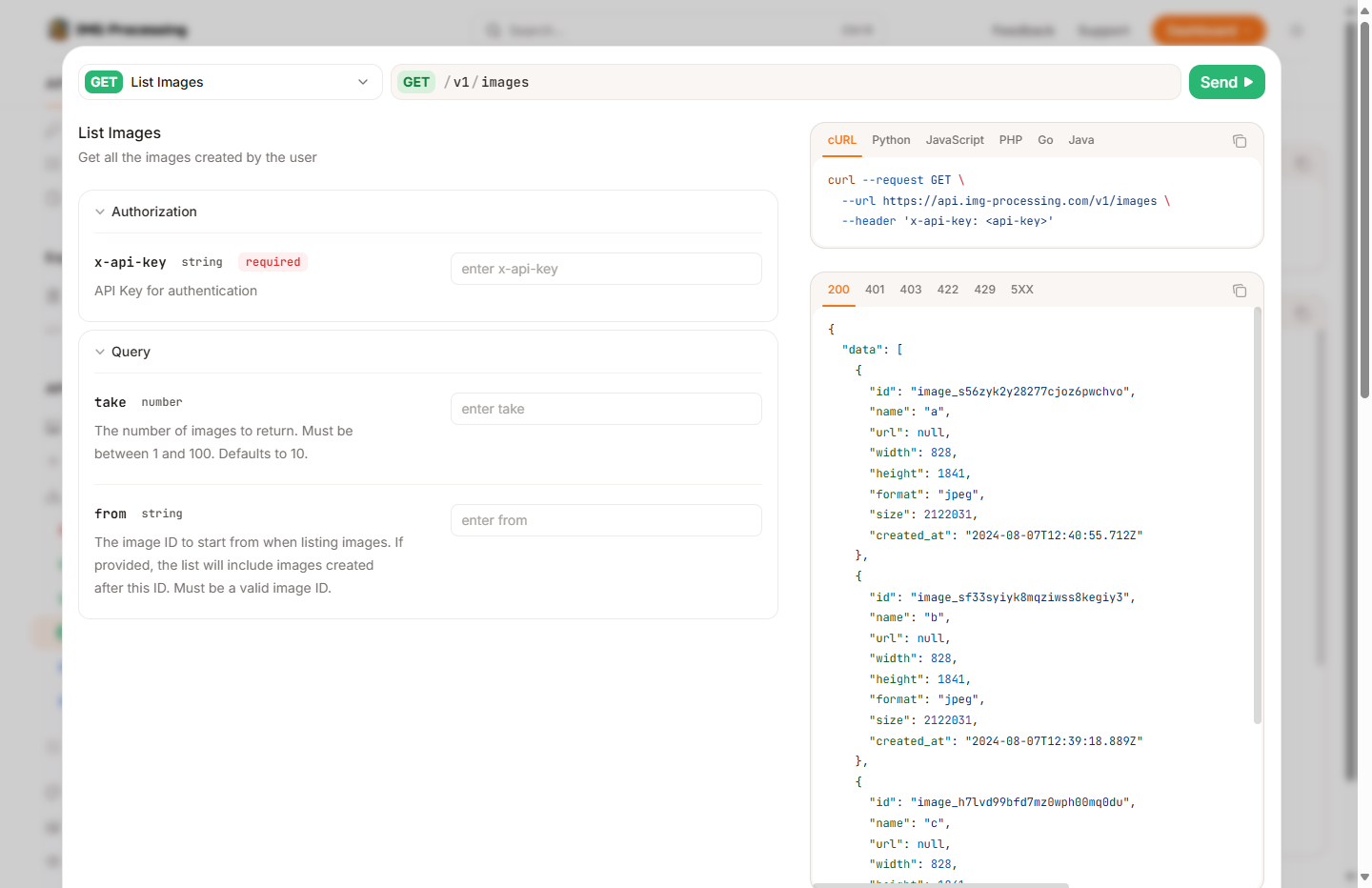
Explore the API with the Playground. The Playground is a web-based interface that allows you to interact with the API in real-time. You can test different endpoints, view responses, and experiment with various parameters.
## Getting Started
Each reference page includes a "Playground" section where you can test the API. The Playground is designed to be user-friendly and intuitive, allowing you to quickly understand how to use the API.
 ### Setting the API Key
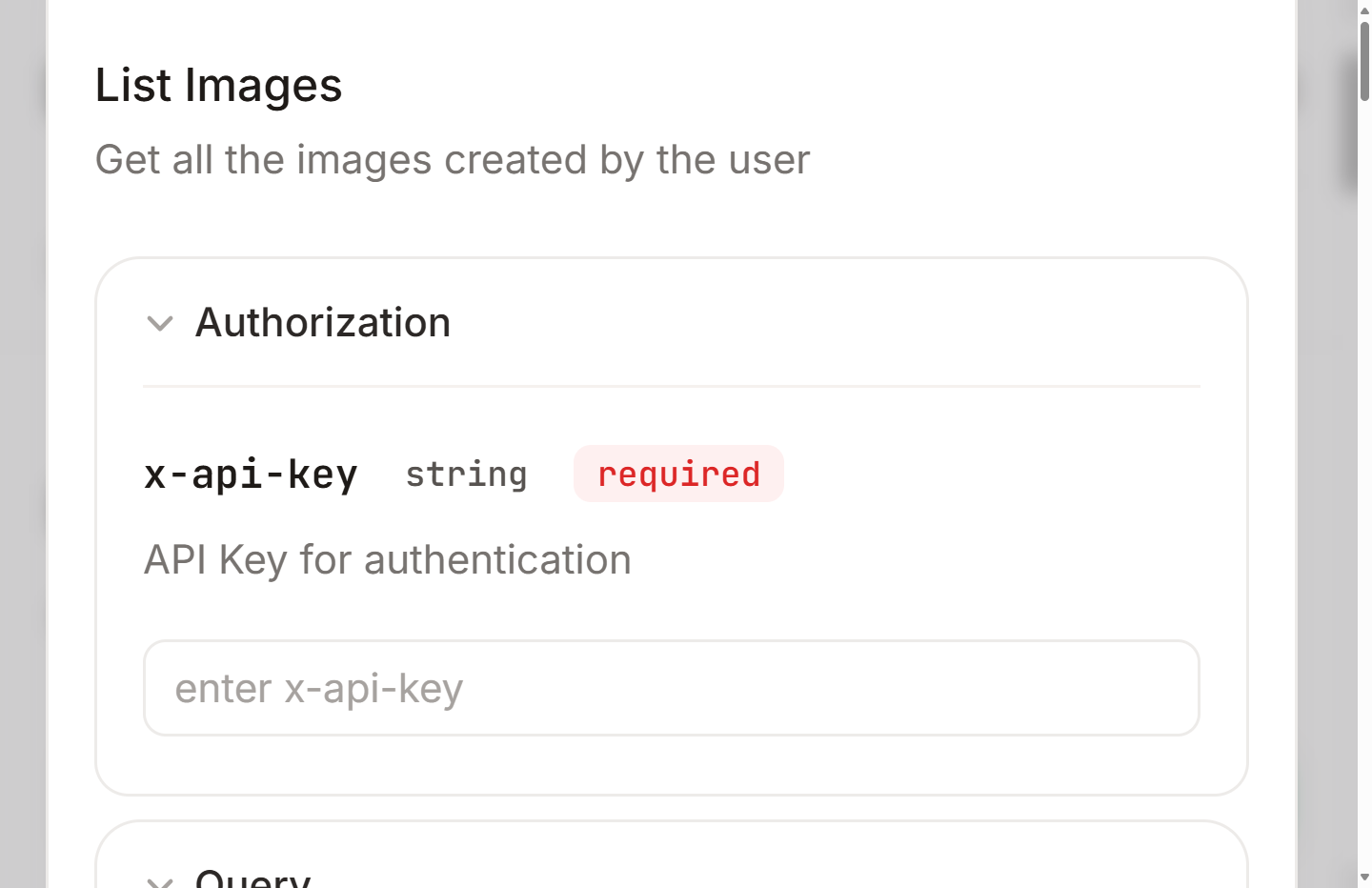
Once you have your API key, you can set it in the Playground at the `Authorization` section. This will allow you to authenticate your requests and access the API's features.
### Setting the API Key
Once you have your API key, you can set it in the Playground at the `Authorization` section. This will allow you to authenticate your requests and access the API's features.
 ### Adding Parameters
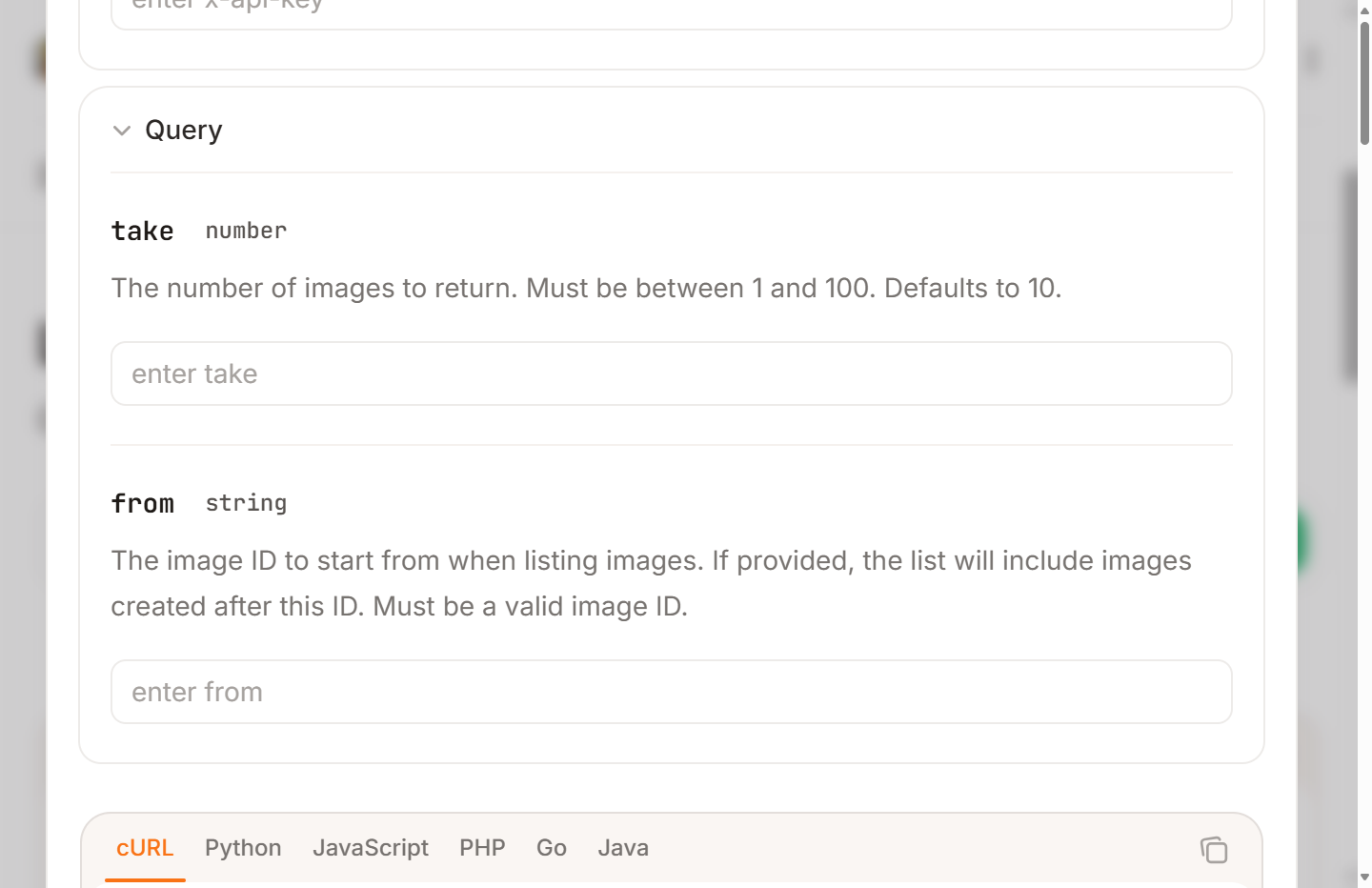
You can add parameters to your requests in the Playground. This allows you to customize your requests and test different scenarios. The Playground provides a user-friendly interface for adding and modifying parameters.
### Adding Parameters
You can add parameters to your requests in the Playground. This allows you to customize your requests and test different scenarios. The Playground provides a user-friendly interface for adding and modifying parameters.
 ### Response Viewer
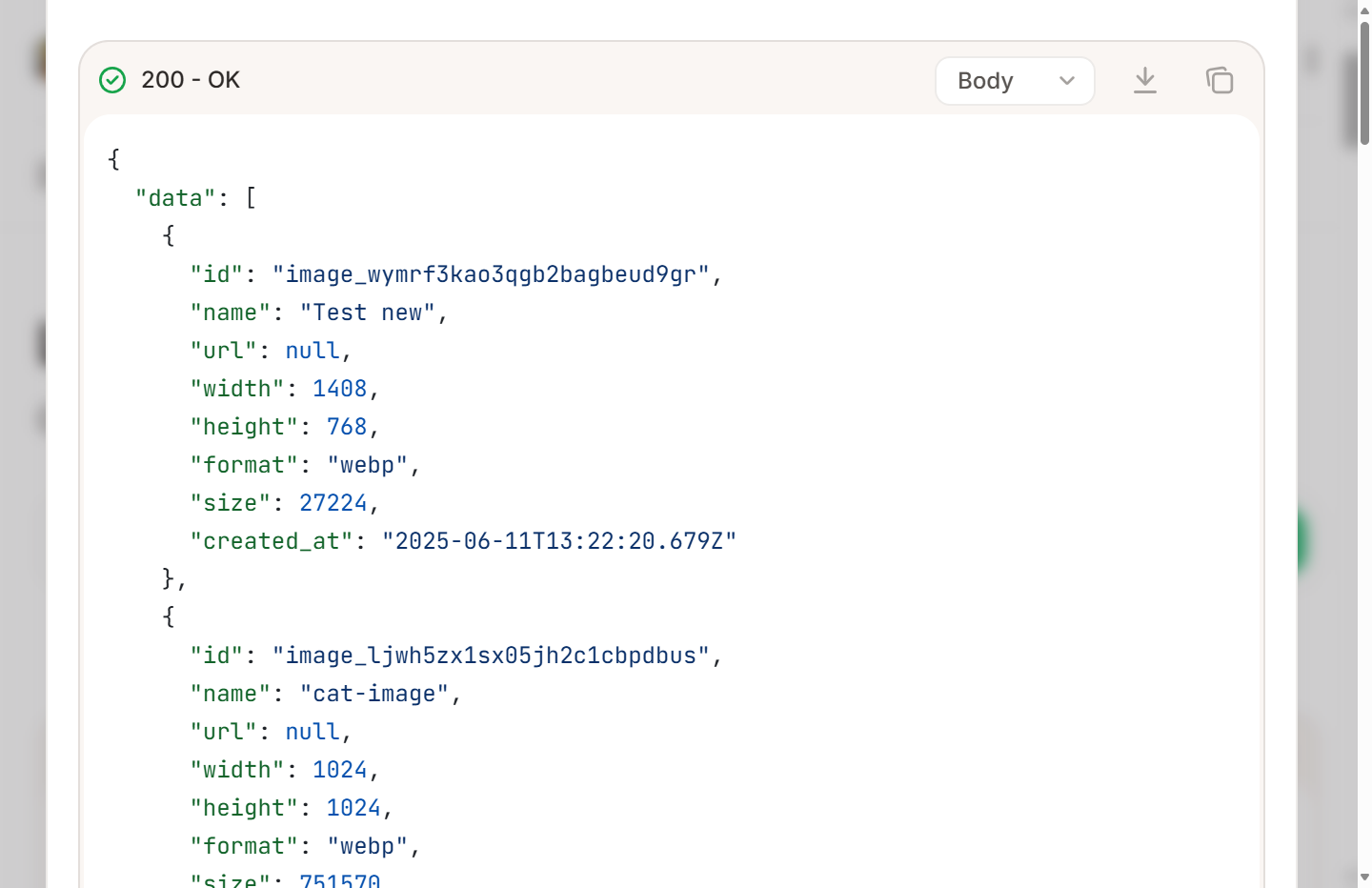
After you send a request, the Playground will display the response in a user-friendly format. You can view the response data, headers, and status code. This makes it easy to understand how the API is responding to your requests.
### Response Viewer
After you send a request, the Playground will display the response in a user-friendly format. You can view the response data, headers, and status code. This makes it easy to understand how the API is responding to your requests.
 ### Request Examples
You can also view request examples in the Playground. This allows you to see how to structure your requests and understand the expected response format. The Playground provides examples for different programming languages, making it easy to integrate the API into your applications.
If you have any problem with the playground, use the requests in the curl tab. This will give you the exact request that is being sent to the API, which you can then use in your own code or tools.
## The Next Steps
Now that you know how to use the Playground, you can start exploring the API and testing different endpoints. The Playground is a powerful tool that allows you to experiment with the API and understand its capabilities.
Directly upload an image to the API
Upload an image from an existing URL
### Request Examples
You can also view request examples in the Playground. This allows you to see how to structure your requests and understand the expected response format. The Playground provides examples for different programming languages, making it easy to integrate the API into your applications.
If you have any problem with the playground, use the requests in the curl tab. This will give you the exact request that is being sent to the API, which you can then use in your own code or tools.
## The Next Steps
Now that you know how to use the Playground, you can start exploring the API and testing different endpoints. The Playground is a powerful tool that allows you to experiment with the API and understand its capabilities.
Directly upload an image to the API
Upload an image from an existing URL